HTML5 Payment Form
Here we’re going to investigate how to style a wonderful HTML5 form structure utilizing some exceptional CSS and CSS3 methods. You will want to style your form after you’ve read this article. This is one of tutorials back from days when I was learning HTML5, I just enhanced it a little and make it a W3C valid.
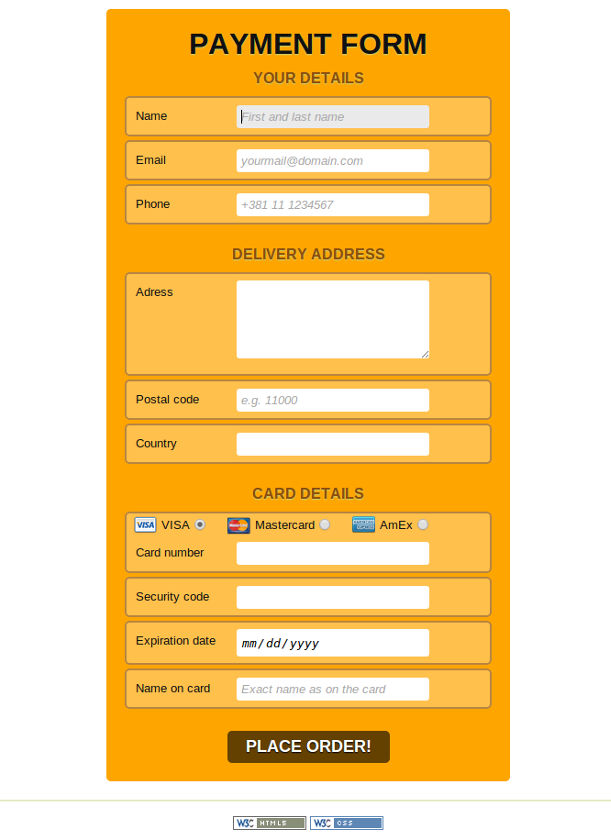
And here it is what will be creating:
Writing Meaningful Markup
We’re going to style a simple payment form, and there will be three main sections on this form:
- Details of a person (YOUR DETAILS)
- Shipping address (DELIVERY ADDRESS)
- The credit card details (CARD DETAILS)
We are also going to use some of HTML5’s new input types and attributes to create more meaningful fields:
- autofocus, to put focus on the first input field when the page loads
- email, for the email field
- tel, for the telephone field
- number, for the credit card number and security code
- required, for required fields
- placeholder, for the hints within some of the fields
Each section of the form will be contained within its own fieldset. In the case of the radio buttons for choosing the card type, we will enclose those options in another nested fieldset.
For Country input field we used list of predefined Countries. The <datalist> tag is used to provide an “autocomplete” feature on <input> elements. Users will see a drop-down list of pre-defined options as they input data.
Note: HTML5 required attribute is providing a very weak form validation, and when a user is view this form from an outdated browser this fields are going to be displayed as input type=”text” , so always consider using backend validation!
If you really want to use just HTML5 form validation you can actually enhance it with pattern which I used on postal code input field. Pattern which I used is most common and it simply tells that user must provide 5 digit number. For advanced use of HTML5 pattern attribute you must craft your knowledge or you can just visit something like html5pattern.com.
Styling the Form
Although I’m not going to write here complete HTML markup because it is too long because of the Country input field option values, I will provide a complete CSS styling and all files can be downloaded at the end of this post.
CSS Style:
body, h1, form, fieldset, legend, ol, li {
    margin: 0;
    padding: 0;
}

body {
    background: #fff;
    color: #111;
    font-family: Arial, Helvetica, sans-serif;
    padding-top: 15px;
}

h1.title {
    text-align: center;
    text-transform: uppercase;
    text-shadow: 0 1px 1px #c0d576;
}

form#payment {
    background: #FFA500;
    -webkit-border-radius: 5px;
    -moz-border-radius: 5px;
    border-radius: 5px;
    padding: 20px;
    width: 400px;
    margin: 10px auto 20px auto;
}

form#payment fieldset {
    border: none;
    margin-bottom: 10px;
}

form#payment fieldset:last-of-type {
    margin-bottom: 0;
}

form#payment legend {
    color: #8B4E0C;
    font-size: 16px;
    font-weight: bold;
    text-shadow: 0 1px 1px #c0d576;
    padding: 10px 0;
    text-transform: uppercase;
    text-align: center;
}

form#payment ol li {
    background: #FFC04C;
    background: rgba(255,255,255, .3);
    border: 2px solid #996D3E;
    border: 2px solid rgba(153,109,62, .7);
    -webkit-border-radius: 5px;
    -moz-border-radius: 5px;
    border-radius: 5px;
    list-style: none;
    line-height: 30px;
    padding: 5px 10px;
    margin-bottom: 4px;
}

form#payment fieldset.cards li:nth-child(1),
form#payment fieldset.cards li:nth-child(2),
form#payment fieldset.cards li:nth-child(3) {
    border: none;
    background: none;
    padding: 0 5px 0 10px;
    margin-right: 5px;
    margin-top: 5px;
    float: left;
    line-height: 20px;
}

form#payment fieldset.cards li label {
    width: auto;
}

form#payment label {
	float: left;
	clear: both;
	font-size: 13px;
	width: 110px;
}

form#payment fieldset.cards li:nth-child(4) label,
form#payment fieldset.cards li:nth-child(5) label,
form#payment fieldset.cards li:nth-child(6) label,
form#payment fieldset.cards li:nth-child(7) label {
	width: 110px;
}

form#payment label[for="visa"] {
    background-image: url("images/visa.png");
    background-size: 25px;
    background-repeat: no-repeat;
    background-position: left;
	line-height: 20px;
	padding: 0 0 0 30px;
}

form#payment label[for="mastercard"] {
    background-image: url("images/mastercard.png");
    background-size: 25px;
    background-repeat: no-repeat;
    background-position: left;
	line-height: 20px;
	padding: 0 0 0 30px;
}

form#payment label[for="amex"] {
    background-image: url("images/amex.png");
    background-size: 25px;
    background-repeat: no-repeat;
    background-position: left;
	line-height: 20px;
	padding: 0 0 0 30px;
}

form#payment label:hover {
    cursor: pointer;
}

form#payment input:not([type="radio"]),
form#payment textarea {
    background: #ffffff;
    border: none;
    -webkit-border-radius: 3px;
    -moz-border-radius: 3px;
    border-radius: 3px;
    font-style: italic;
    outline: none;
    padding: 5px;
    width: 200px;
}

form#payment input:not([type="submit"]):focus,
form#payment textarea:focus {
    background: #eaeaea;
}

form#payment input[type="radio"] {
    margin-top: 3px;
}

form#payment button {
    display: block;
    color: white;
    background-color: rgba(0,0,0, 0.6);
    margin: 10px auto 0 auto;
    padding: 7px 20px;
    text-transform: uppercase;
    text-shadow: 0 1px 1px #000000;
    font-size: 18px;
    font-weight: bold;
    border: none;
    -webkit-border-radius: 5px;
    -moz-border-radius: 5px;
    border-radius: 5px;
}

form#payment button:hover {
    background-color: rgba(0,0,0, 0.8);
    cursor: pointer;
}

footer {
    margin: 0 auto;
    border-top: 2px solid #e3ebc3;
}

footer p {
    text-align:center;
}
This form will not look the same on every browser, but that doesn’t mean you can’t use it.
And that’s it!